Set up LegacyOS on your phone
Install the app to your home screen and turn on notifications — it takes about a minute. Choose your phone type below and follow along.
Installing the app and turning on notifications is what lets you get attendance reminders, earnings updates, and office announcements — even when the app is closed. It's worth the minute.
Which phone do you have?
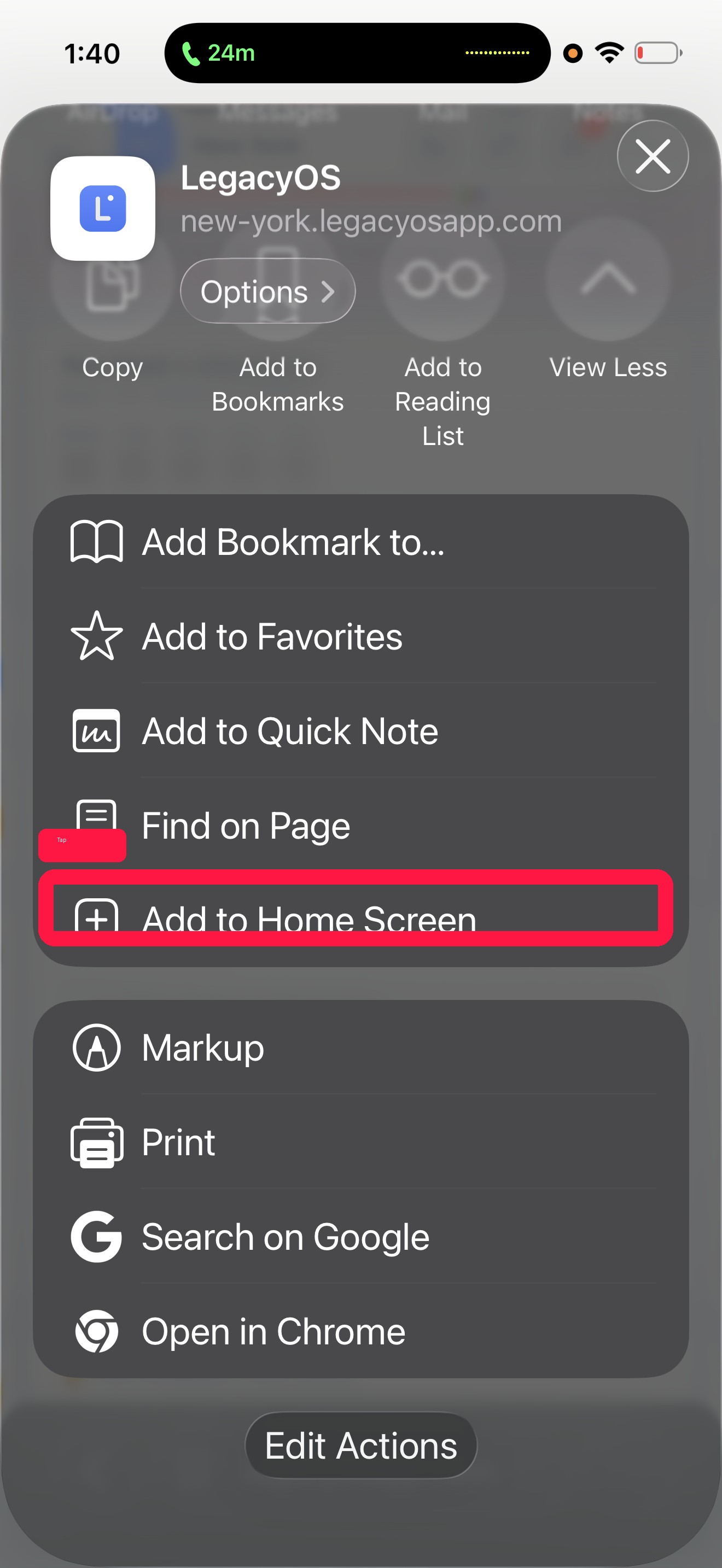
Open the install menu
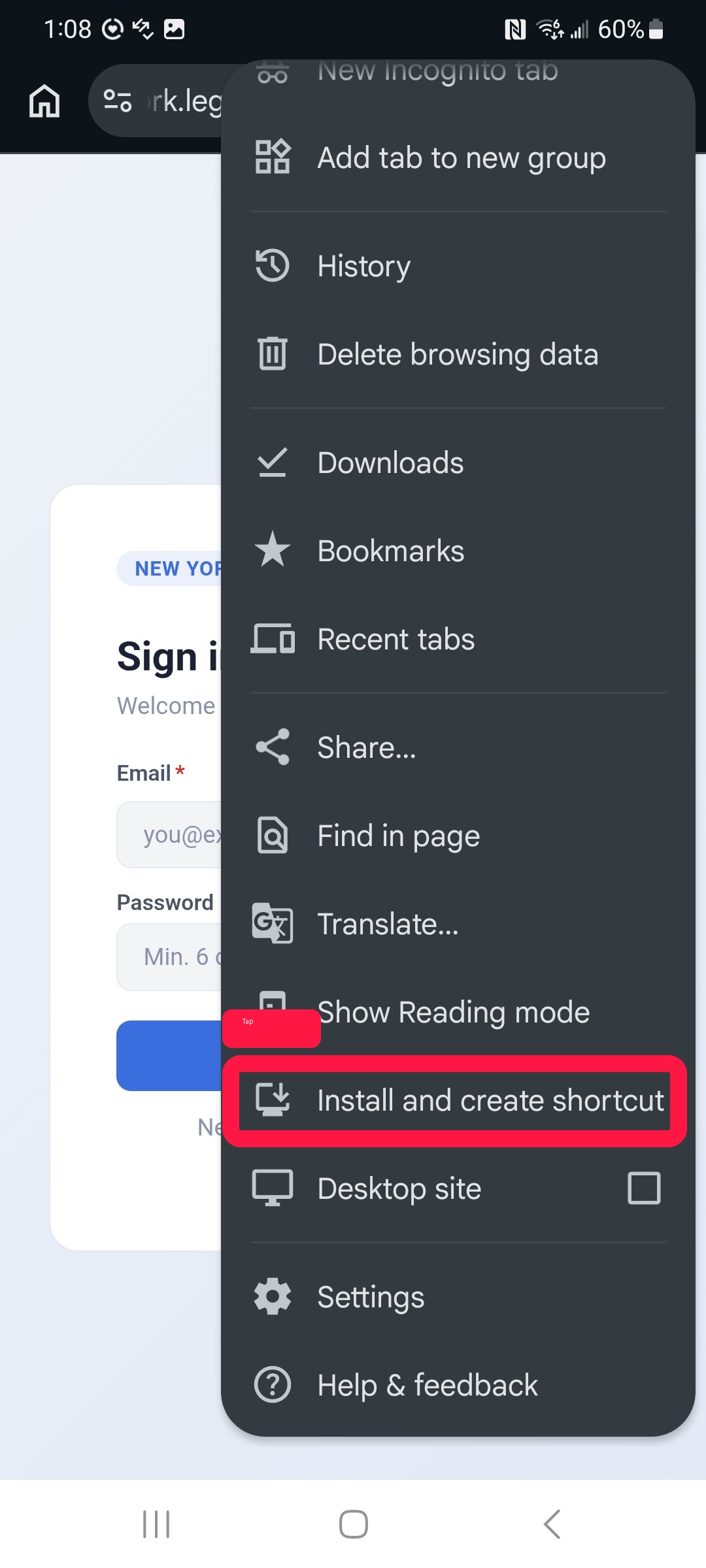
Open your office link in Chrome. Tap the ⋮ menu in the top-right corner, then choose Install and create shortcut.
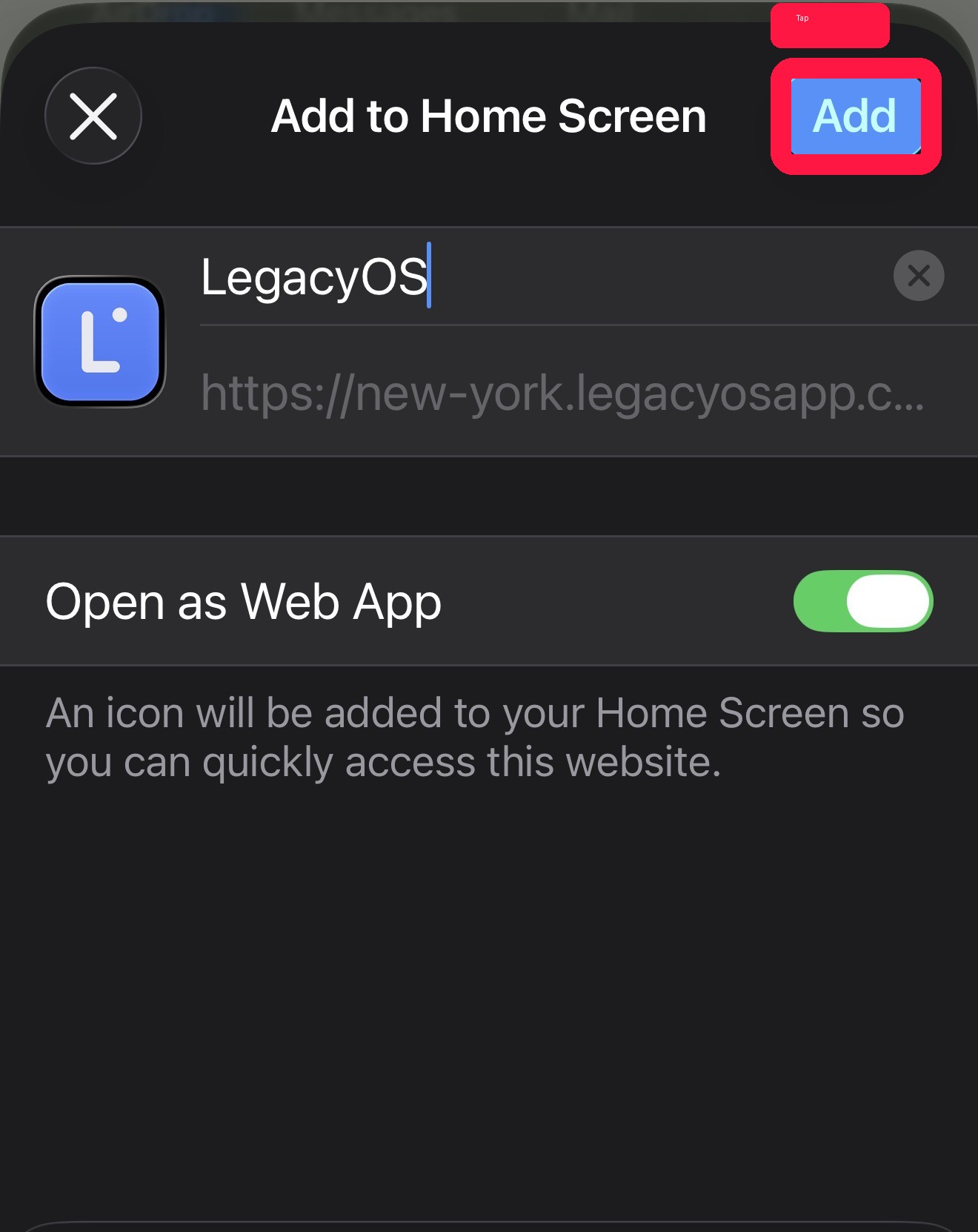
Confirm the install
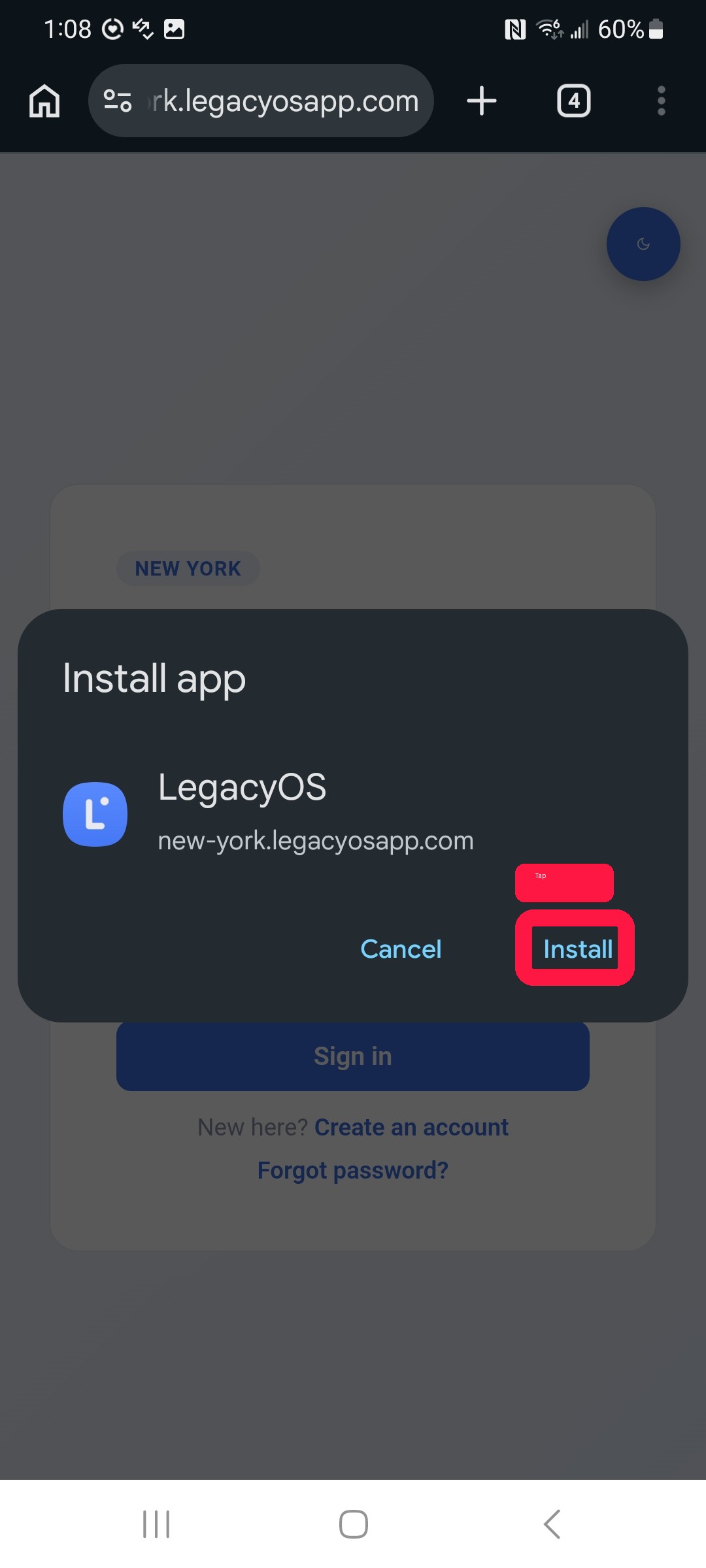
A box pops up showing the LegacyOS icon. Tap Install to add the app to your phone.
Open the app and enable notifications
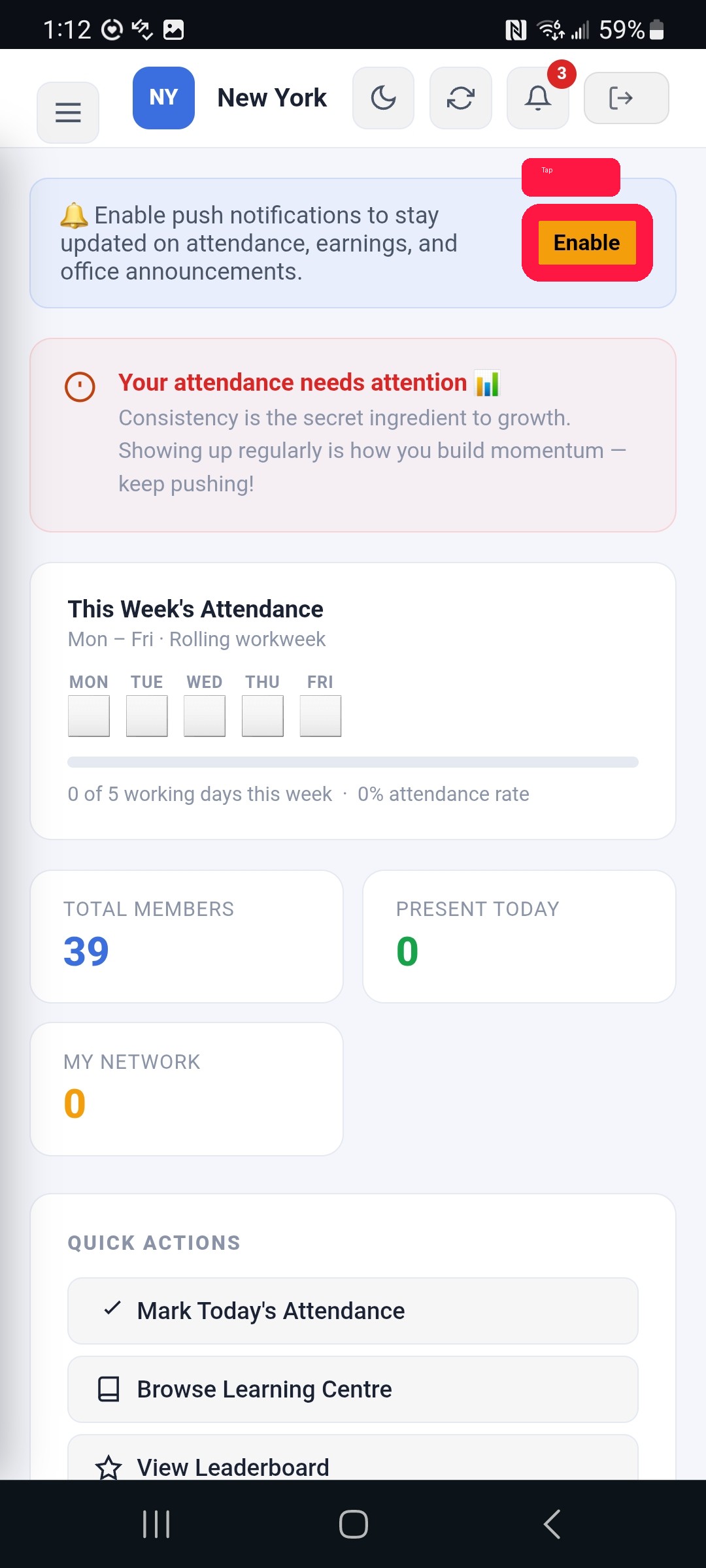
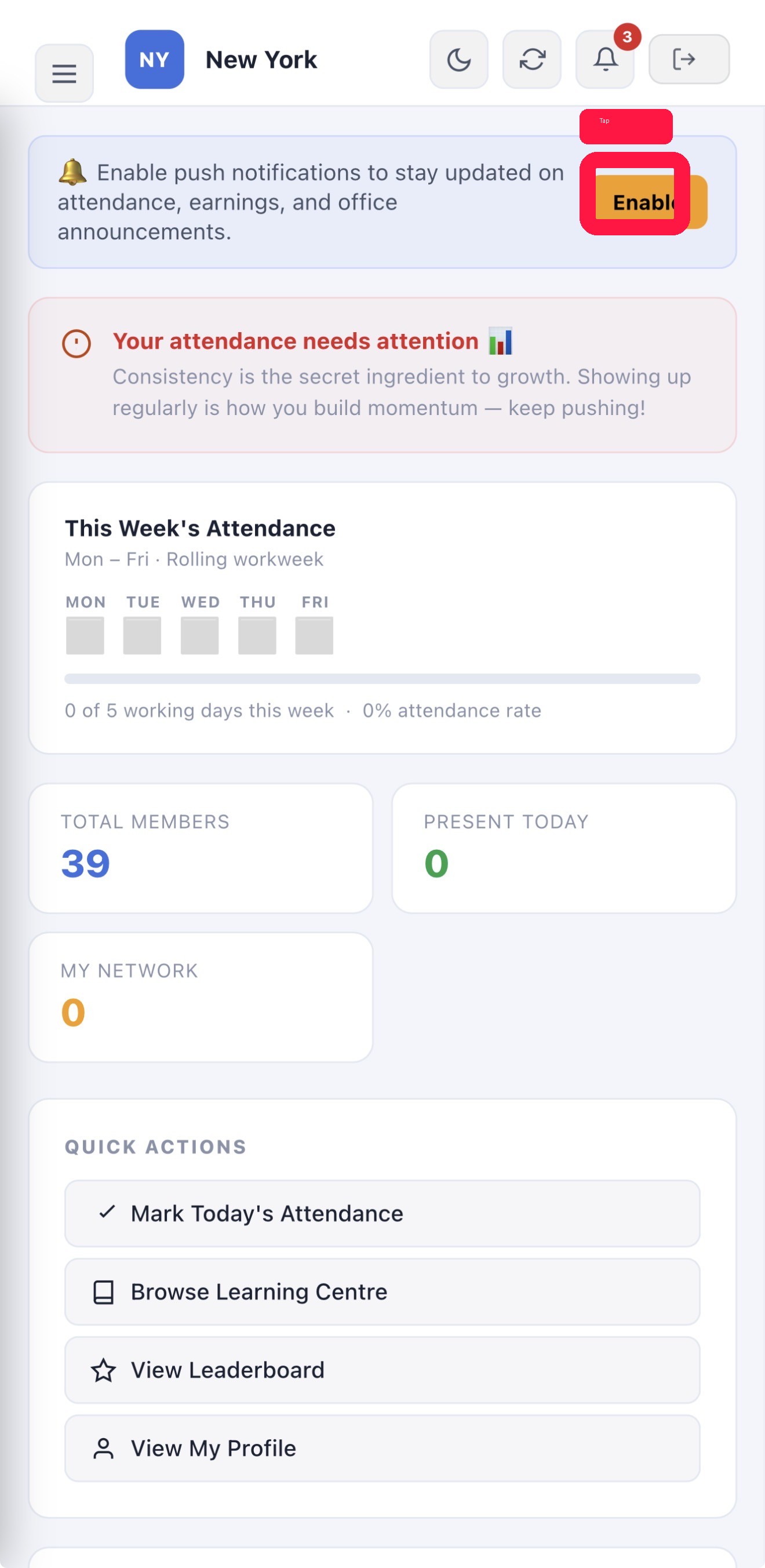
Open the app from your home screen and sign in. On your dashboard you'll see a notifications banner — tap Enable.
Allow notifications
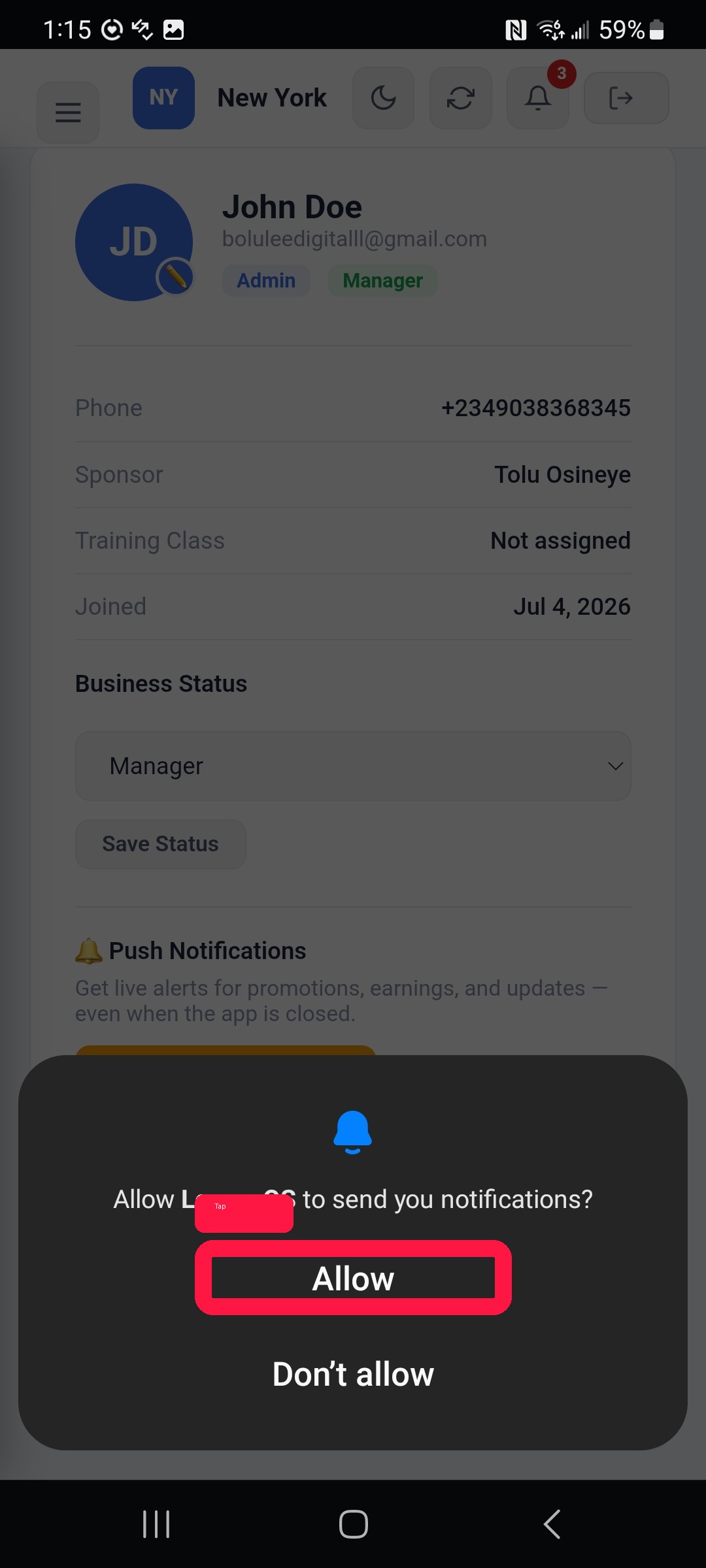
Your phone asks for permission. Tap Allow.
You're all set
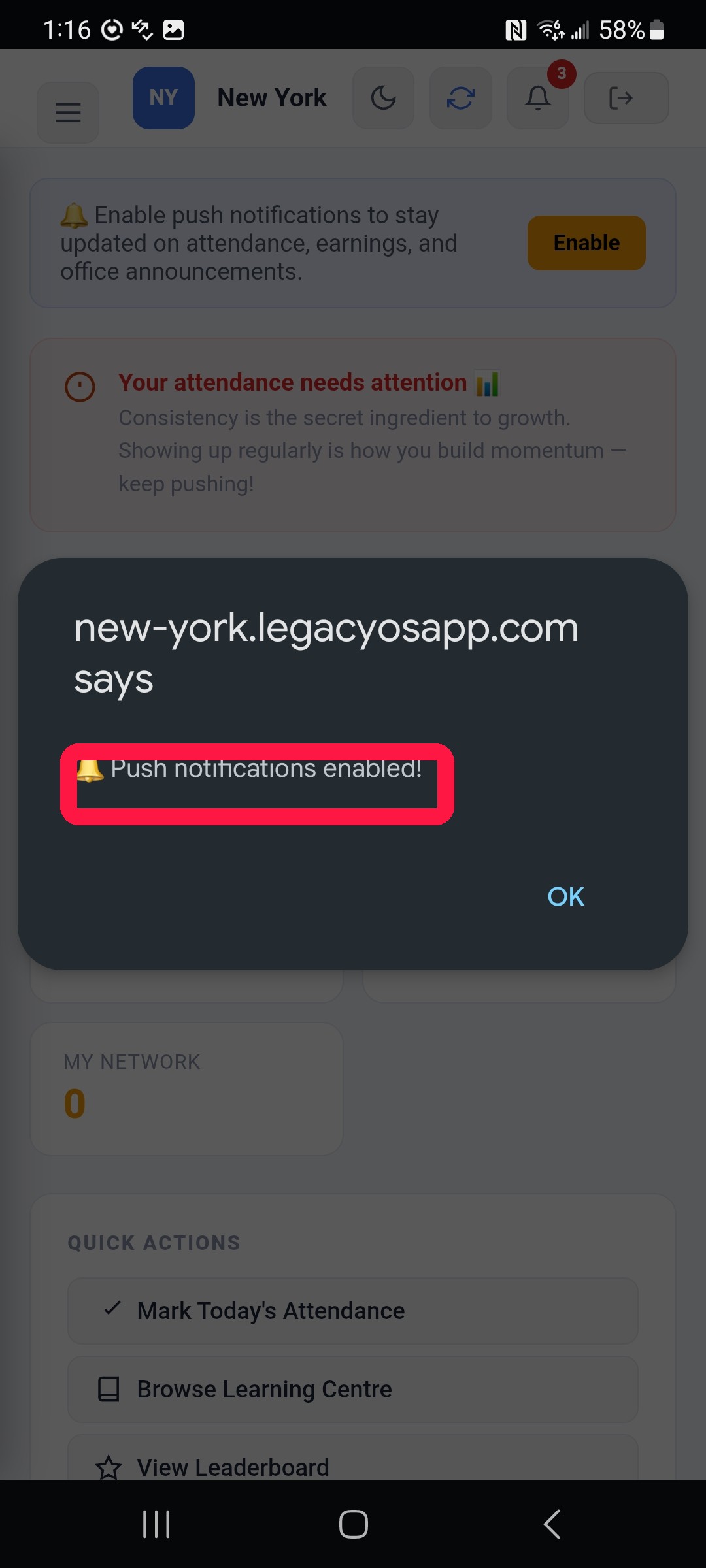
You'll see "Push notifications enabled!" — that's it. You'll now get reminders and updates on this phone.
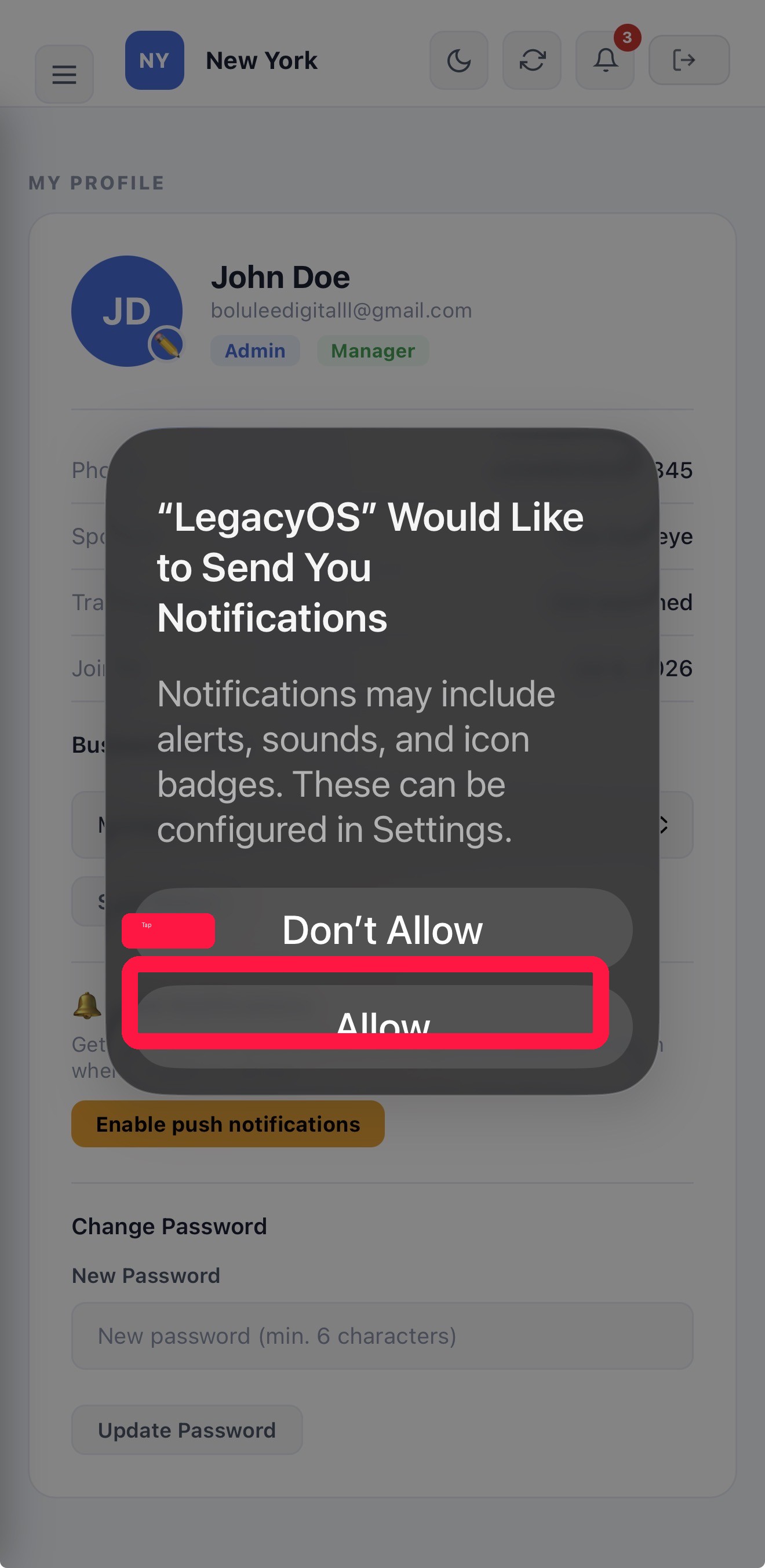
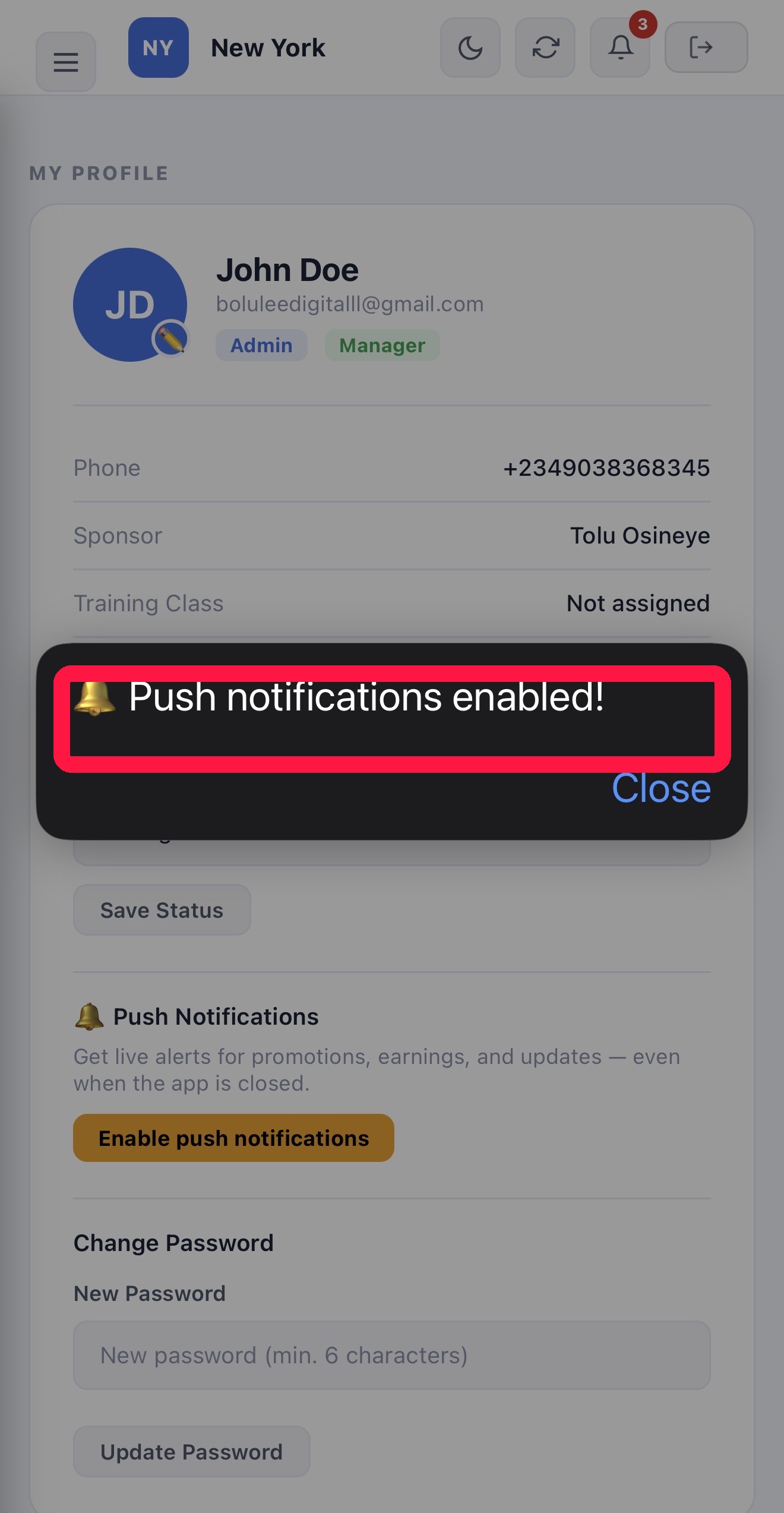
Turn on notifications
Notifications are covered in the last steps above. If you skipped them, or tapped "Don't allow" by mistake, here's how to fix it.
Open the app → My Profile → Enable push notifications, then tap Allow when your phone asks. If nothing happens, you may have blocked notifications before — turn them back on for LegacyOS in your phone's Settings, then try again.
Waiting for approval
Just registered and seeing "Waiting for approval"? That's expected.
Every new member is approved by an Admin in their office before they can see anything, which keeps each office's information private. Your request has been sent. As soon as it is approved, you'll get an email, and you can sign in with the email and password you registered with. If it is taking a while, let your office admin or the person who invited you know.